Ondura

The office suite for Windows and Linux.

E-mail with calendar, contacts and tasks, plus a word processor, spreadsheets and presentations. Ondura looks and works like Microsoft 365, opens Microsoft Office and LibreOffice files directly and works with Microsoft 365, Exchange and any IMAP server.

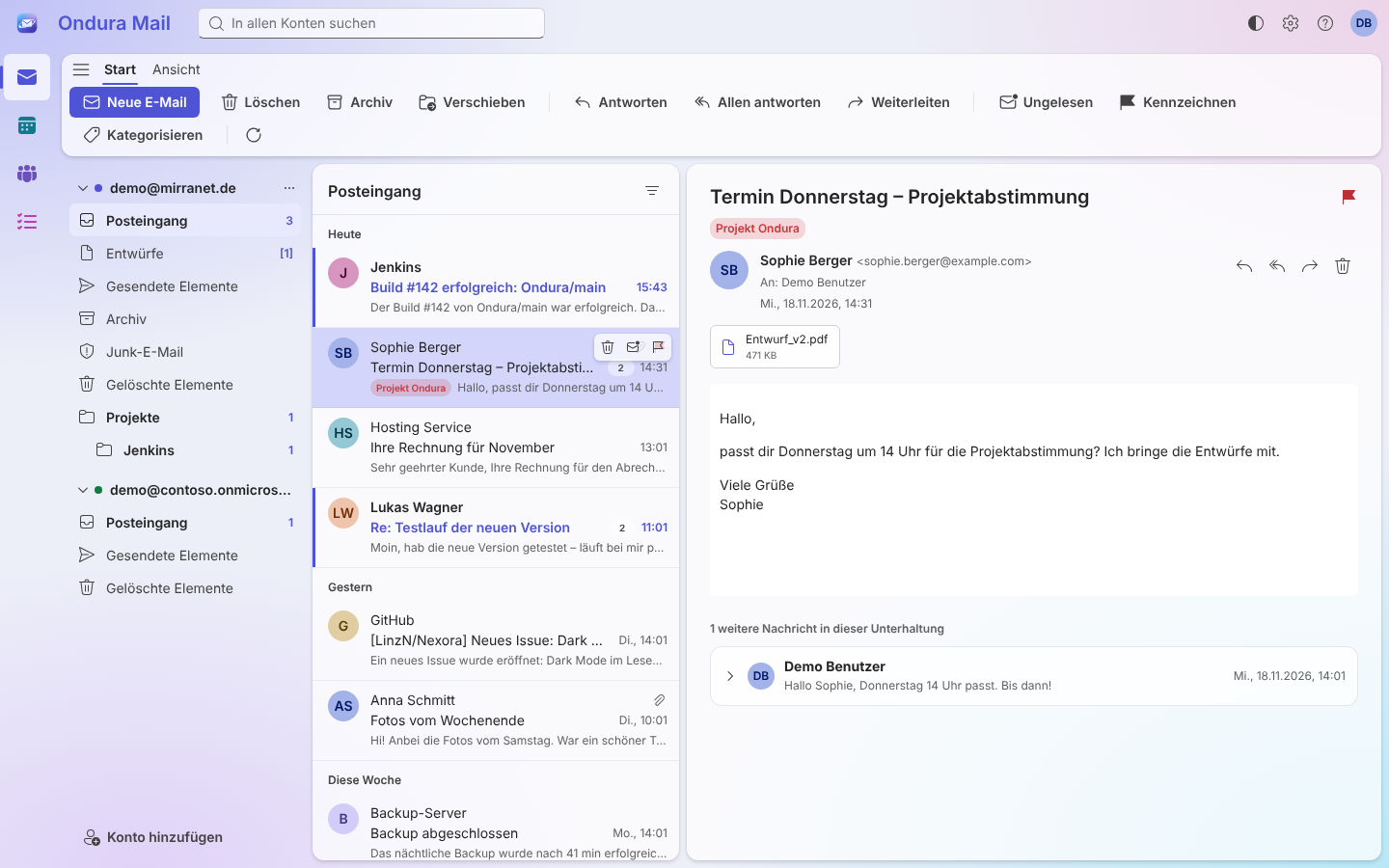
Ondura Mail with inbox, message list and an open message
All your accounts in one window, with folders, conversations and full-text search.

Ondura Mail

E-mail, calendar, contacts and tasks in one window – like Outlook. You switch between them in the sidebar, without opening a second app.

E-mail

  • Works offline: whatever you do applies at once and is sent to the server as soon as it can be reached.
  • New mail arrives within seconds and shows up as a desktop notification.
  • Rules, categories, flags, signatures and delayed sending. Large attachments are shared through OneDrive on Microsoft 365.
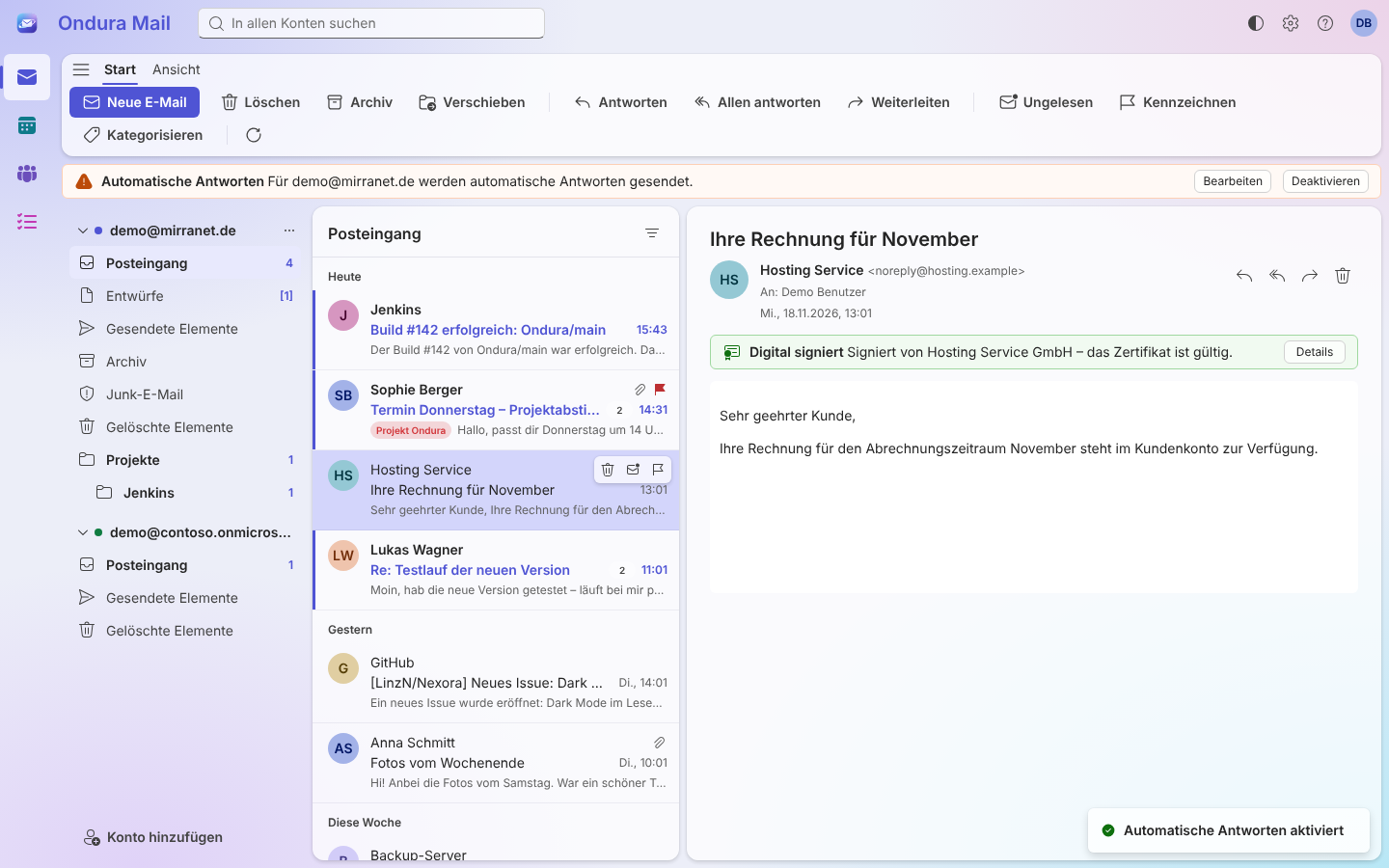
  • Automatic replies are stored on the server and keep working while your PC is off.
  • Shared mailboxes from Microsoft 365 and Exchange appear as their own account.
  • S/MIME: sign and encrypt messages, check signatures.
  • HTML mail never runs scripts, and remote images (tracking pixels) stay blocked until you allow them.

Calendar

Day, work week, week and month views; recurring events and reminders; send, accept and decline meeting invitations; scheduling assistant with free/busy times, room finder, drag & drop.

Contacts

Address books with groups and photos, vCard import and export, address completion while you type.

Tasks

Task lists in the style of Microsoft To Do, with subtasks, due dates, recurring tasks and reminders.

A signed message and active automatic replies in Ondura Mail
Signed mail and automatic replies
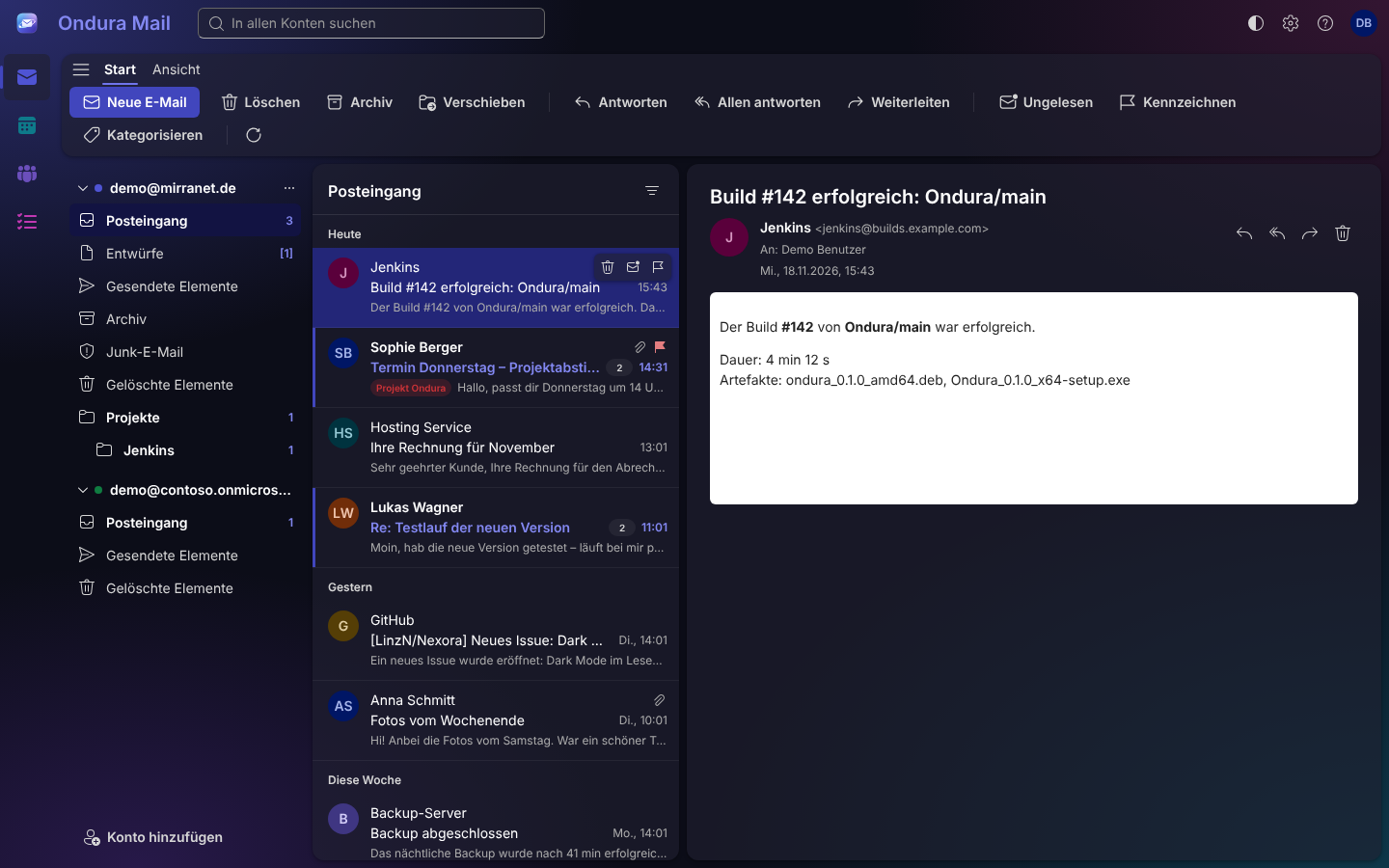
Ondura Mail in dark mode
Dark mode

Documents, spreadsheets, presentations

Files are opened and saved in their own format – no conversion. Anything in a file that Ondura can't show is listed under Datei › Informationen (File › Info).

Ondura Text

.docx.odt

The word processor: page view like Word, styles, headers and footers, sections, tables, comments and tracked changes, footnotes and endnotes, table of contents, bibliography, mail merge and spell checking for German and English.

Ondura Tabellen

.xlsx.ods

The spreadsheet app: around 180 functions including dynamic arrays, Excel tables, charts, pivot tables, sparklines, conditional formatting, data validation, filters, what-if analysis and solver.

Ondura Präsentation

.pptx.odp

The presentation app: slide master, tables, charts, editable SmartArt, audio and video, animations and transitions including Morph, presenter view, pen and laser pointer, export as video.

In all three apps

PDF export
Datei › Als PDF exportieren (File › Export as PDF)
Accessibility checker
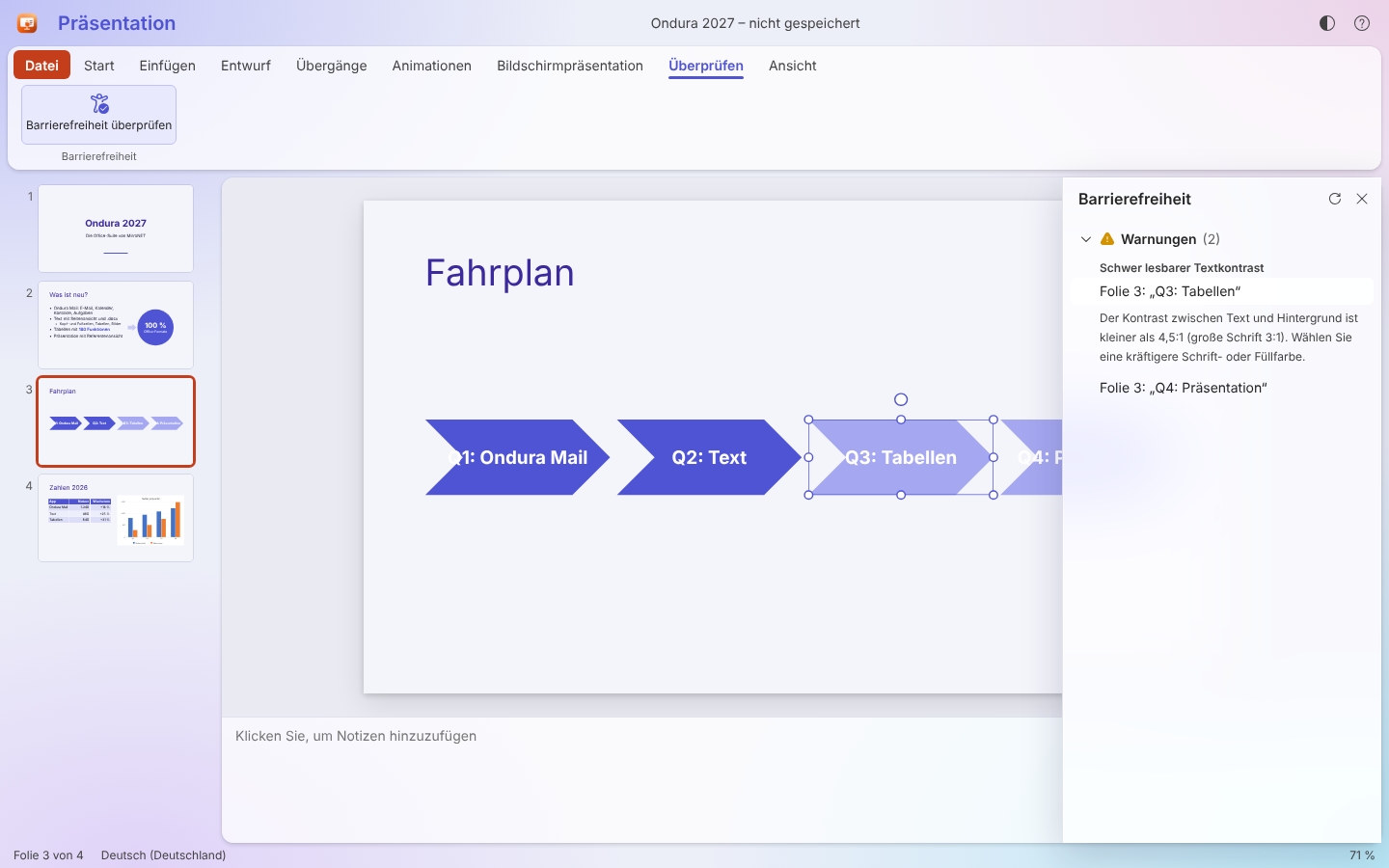
Finds missing alternative text, tables without header rows and skipped heading levels, and fixes many of them with one click.
Macros
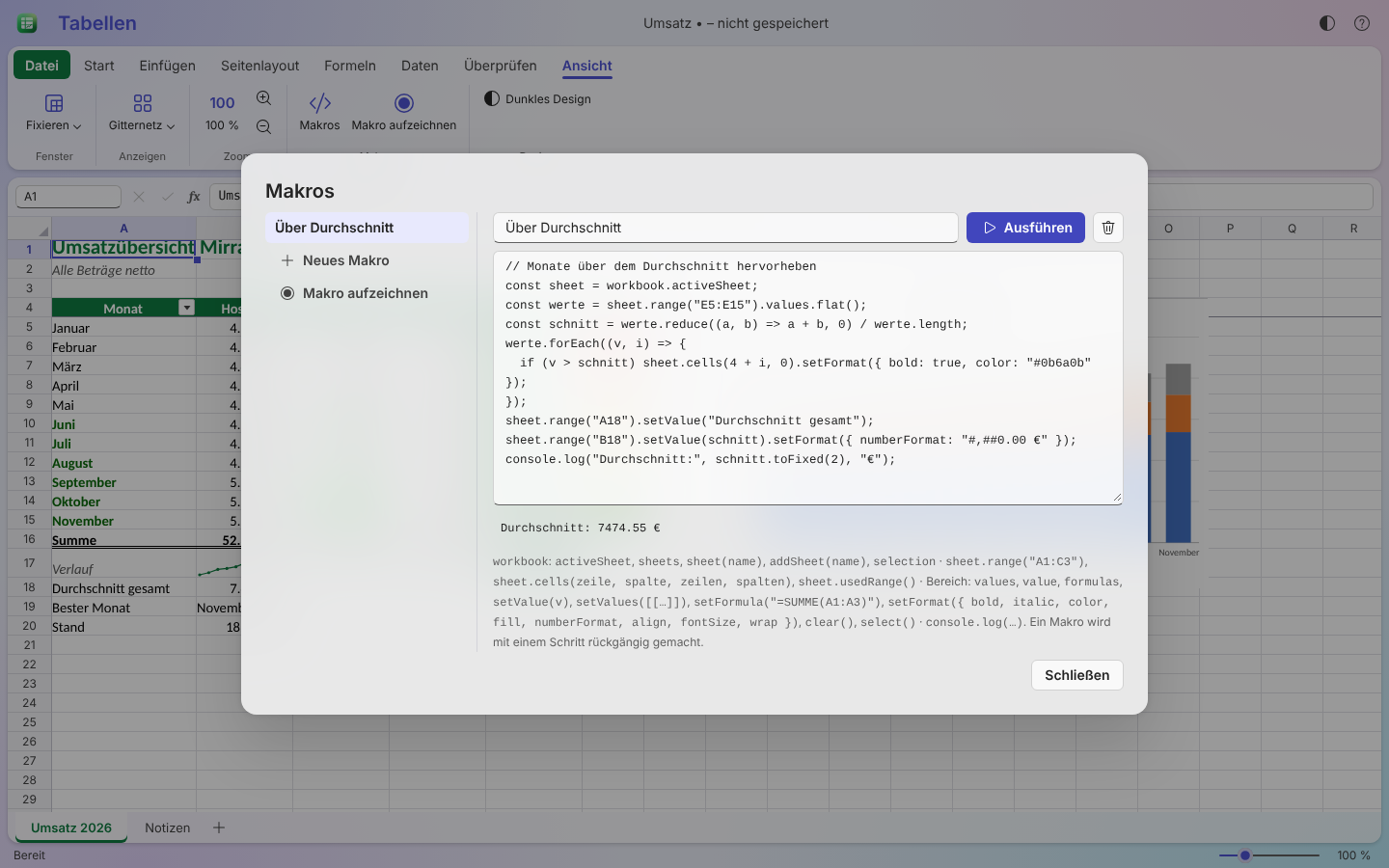
Small scripts for recurring work; Tabellen can record them for you. Macros are never stored in documents, so opening a file can't run code.
Accessibility checker in Ondura
Accessibility checker
Macro editor in Ondura Tabellen
Macros in Tabellen

Works with your accounts

Sign in to Microsoft 365 in your browser – there's no app to register yourself. Calendars, contacts and tasks also work without any account, on your computer only.

AccountE-mailCalendarContactsTasks
Microsoft 365, Exchange Online, Outlook.comYesYesYesYes, Microsoft To Do
Exchange Server 2013 SP1 and newerYesYesYes–
IMAP / SMTP (any provider)Yes–––
CalDAV / CardDAV–YesYesYes
On this computer–YesYesYes

Your data stays with you

Ondura keeps a copy of your mail, calendars and contacts on your computer so it is fast and works offline. Passwords and sign-ins are kept in your system's credential store (Windows Credential Manager, GNOME Keyring or KWallet), never in plain files. Ondura sends data only to your own mail and calendar servers, and checks GitHub for updates.

Download

You'll find the current version on the releases page.

All versions on GitHub

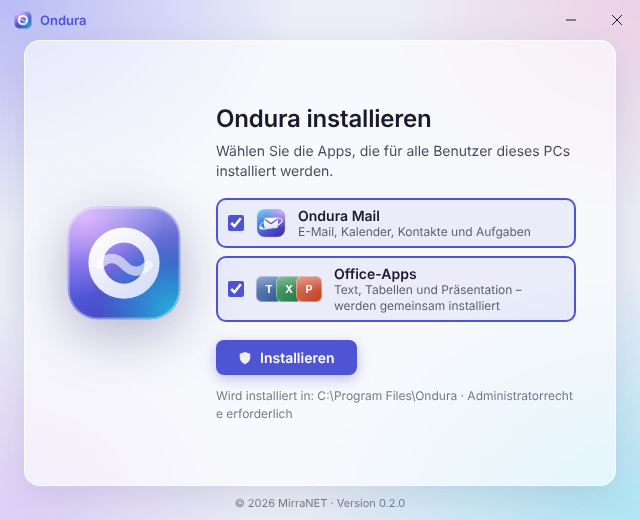
Ondura setup with a choice between Ondura Mail and the office apps

The setup asks what to install: Ondura Mail on its own, the office apps (Text, Tabellen and Präsentation together) or both. Ondura is installed for all users of the PC and keeps itself up to date – when a new version is available, an Update button appears in the title bar.

Ondura's user interface is in German.

Getting started

  1. Open Ondura Mail

    Choose Konto hinzufügen (Add account).

  2. Pick your account type

    Microsoft 365 / Outlook.com: sign in with Microsoft in your browser. Exchange Server: e-mail address, password and EWS address. IMAP (e.g. Gmail, GMX, your own server): e-mail address, password and server names. CalDAV / CardDAV (Nextcloud, mailbox.org, iCloud …): the server address is enough.

  3. Done

    The account's mail, calendars, contacts and tasks appear automatically.

If your company's IT has to approve Ondura first, Microsoft tells you during sign-in. Point them to the admin guide.